Using SAP Shortcuts
Using SAP Shortcuts 
Prerequisites
- You have received an SAP user ID from your system administrator, and created a password.
- You have created an SAP Shortcut. It is available on your desktop.
Procedure
If you do not have an SAP session running
- Double-click the SAP Shortcut for the task you want to run.
A logon dialog box is displayed. The title bar specifies the system ID, client, language, and task.
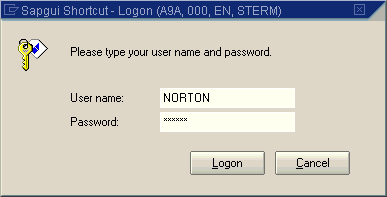
- Enter your password. Choose Logon, or choose Enter.
The SAP session starts.
- To view or change your shortcut definition while you are logging on, position the cursor anywhere in this logon dialog box (not on the title bar, input fields, or pushbuttons), and click the right mouse button. The context menu is displayed.
In this context menu, if you do not enter a password, only the Edit option is activated. After you have entered the first character of your password, both the Open and Edit options are activated.
If you have an SAP session running
Double-click the SAP Shortcut for the task you want to run.
- If an application is already running, a new SAP session starts.
- Otherwise, the current SAP session starts the task you want to run.

To start a shortcut from within an open SAP session, drag and drop the shortcut onto the open session. The system starts the task you want to run. The following functions are also available:
|
Key + Drag and Drop |
Result: You can now... |
|
Shift + Drag and Drop |
Edit the shortcut. |
|
CTRL + Drag and Drop |
Open a new session, and start the task you want to run. |
Created with the Personal Edition of HelpNDoc: Streamline Your Documentation Process with HelpNDoc's Project Analyzer