Scrolling to View Information
Scrolling to View Information 
Use
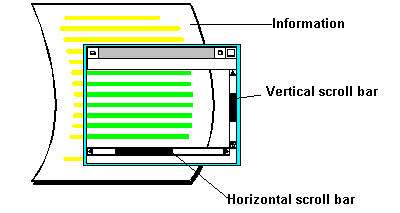
When you view information (for example, a list or online help), not all of the information may fit in your window. To see the additional information, you use scrollbars. To move:
- Up and down, use the vertical scrollbar
- Left and right, use the horizontal scrollbar
Procedure
|
To move |
Do this |
|
Up or down one line |
Choose the up or down scroll arrow on the vertical scrollbar. |
|
Left or right one character |
Choose the left or right scroll arrow on the horizontal scrollbar. |
|
Up or down one page |
Click above or below the slider box on the vertical scrollbar. |
|
Left or right the width of the page |
Click to the right or left of the slider box on the horizontal scrollbar. |
|
To a certain position in the information (up or down) |
Drag the slider box on the vertical scrollbar to the approximate location of the desired information, and release the mouse button. |
|
To a certain position in the information (left or right) |
Drag the slider box on the horizontal scrollbar to the approximate location of the desired information, and release the mouse button. |
You can also:
|
Move to |
By choosing |
Or pressing |
Or pressing |
|
First page |
|
Shift + F9 |
CTRL+PageUp |
|
Last page |
|
Shift + F12 |
CTRL+PageDown |
|
Previous page |
|
Shift + F10 |
PageUp |
|
Next page |
|
Shift + F11 |
PageDown |


Created with the Personal Edition of HelpNDoc: Streamline Your Documentation Process with a Help Authoring Tool